

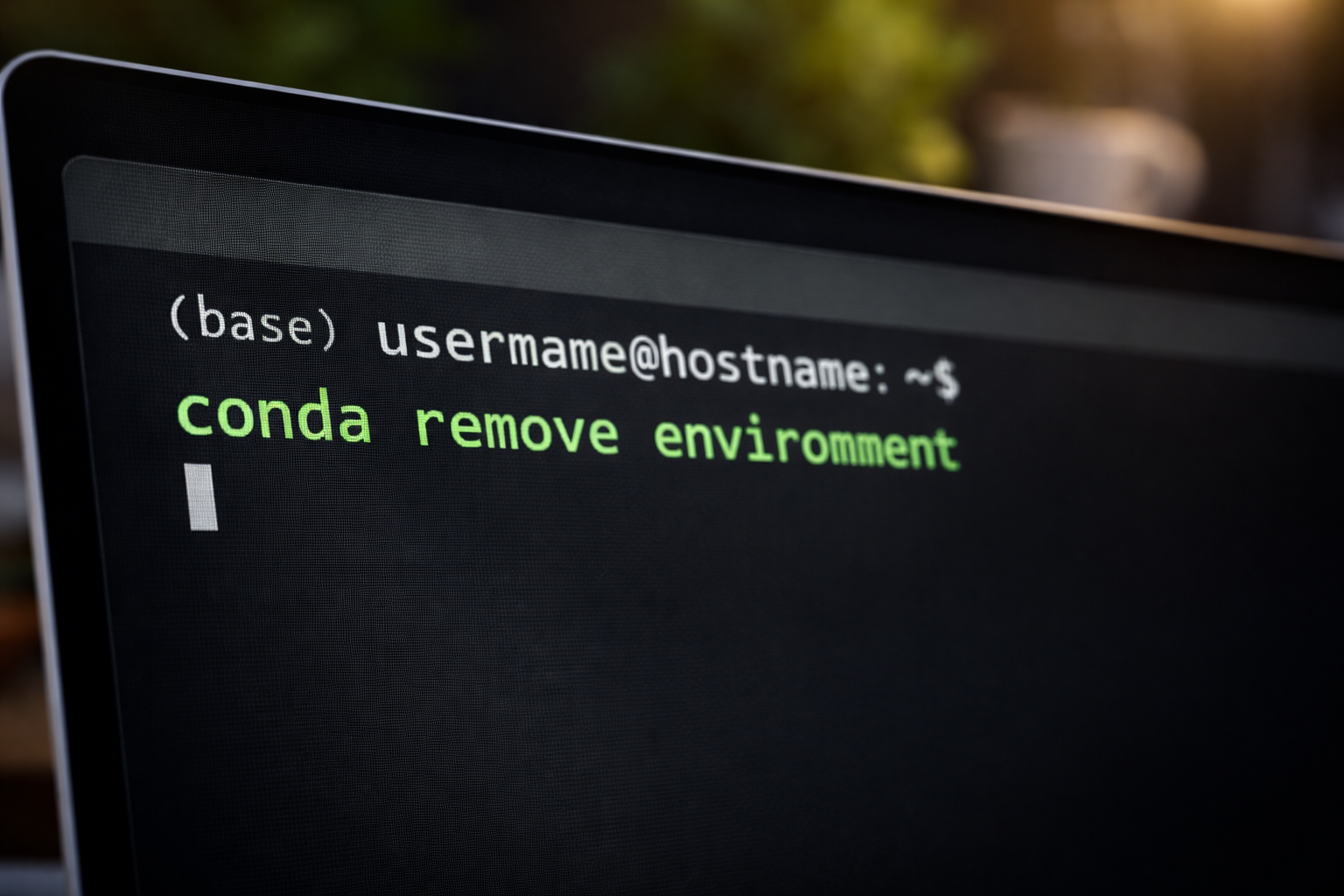
Managing development environments is an essential part of modern software workflows. Tools like Conda make it easy to create isolated environments for different projects, helping developers avoid dependency conflicts and maintain stability. However, as projects evolve, some environments become outdated or unnecessary. Removing these unused environments is just as important as creating them.
The process of conda remove environment is simple, but understanding it properly can help you maintain a clean and organized system. This article explains everything you need to know, from basic concepts to best practices, so you can manage your environments with confidence and efficiency.
Understanding Conda Environments
A Conda environment is a self-contained directory that holds a specific collection of packages, libraries, and dependencies. Each environment can have its own version of Python and other tools, making it ideal for working on multiple projects simultaneously.
When you create many environments over time, your system may become cluttered. Unused environments can take up disk space and create confusion when switching between projects. That is where the conda remove environment process becomes useful.
Why You Should Remove Unused Environments
Free Up Disk Space
Each environment may contain large packages such as data science libraries or frameworks. Removing unnecessary environments helps recover valuable storage space.
Improve System Organization
Keeping only relevant environments ensures that your workflow remains clean and easy to manage. It becomes simpler to identify active projects.
Reduce Errors
Old environments may contain outdated dependencies. Removing them reduces the risk of accidentally using incorrect configurations.
How to List Existing Environments
Before removing an environment, you should first check which environments exist on your system. You can do this by running a simple command in your terminal:
conda env list
or
conda info –envs
This command displays all available environments along with their locations. The active environment is usually marked with an asterisk (*).
Understanding your environment list is the first step in safely using conda remove environment without affecting active work.
Basic Syntax for Conda Remove Environment
To remove an environment, Conda provides a straightforward command:
conda remove –name environment_name –all
Here, you replace environment_name with the actual name of the environment you want to delete. The –all flag ensures that all packages and files within that environment are removed completely.
This command is the core of the conda remove environment process and works across different operating systems.
Step-by-Step Process to Remove an Environment
Step 1: Deactivate the Environment
Before removing an environment, make sure it is not currently active. If it is active, deactivate it using:
conda deactivate
This step prevents errors during removal.
Step 2: Confirm the Environment Name
Use the environment listing command again to verify the exact name of the environment you want to remove.
Step 3: Execute the Removal Command
Run the removal command:
conda remove –name myenv –all
Replace myenv with your target environment name.
Step 4: Confirm the Action
Conda may ask for confirmation before proceeding. Type y and press Enter to continue.
After completion, the environment will no longer appear in your environment list.
Removing Environments by Path
In some cases, you may want to remove an environment using its directory path instead of its name. This is useful when working with custom locations.
The command looks like this:
conda remove –prefix /path/to/environment –all
This method offers flexibility and is another way to perform a conda remove environment operation effectively.
Common Mistakes to Avoid
Removing the Active Environment
Trying to remove an active environment can cause errors. Always deactivate it first.
Typing the Wrong Name
A small typo in the environment name can lead to confusion or failure. Double-check before executing the command.
Forgetting the –all Flag
Without the –all option, Conda will not remove the entire environment. Always include it to ensure complete deletion.
Deleting Important Environments
Be cautious when removing environments that are still in use. Always verify before deleting.
Best Practices for Environment Management
Use Clear Naming Conventions
Give your environments meaningful names related to your projects. This makes it easier to identify which ones to remove later.
Regularly Clean Up
Schedule periodic checks to remove unused environments. This keeps your system organized and efficient.
Export Environment Files
Before removing an environment, consider exporting it:
conda env export > environment.yml
This allows you to recreate the environment later if needed.
Keep a Minimal Setup
Avoid creating too many environments unnecessarily. Focus on maintaining only what you actively use.
When Not to Remove an Environment
There are situations where removing an environment may not be the best choice:
Ongoing Projects
If a project is still active, removing its environment can disrupt development.
Shared Environments
In team settings, some environments may be shared across users. Removing them without confirmation can cause issues.
Reusable Configurations
Some environments serve as templates for multiple projects. Keeping them can save time in the future.
Troubleshooting Issues
Environment Not Found
If you see an error stating that the environment does not exist, verify the name or path. Use the listing command again to confirm.
Permission Errors
Sometimes, permission restrictions may prevent deletion. Running the command with proper privileges can resolve this issue.
Partial Removal
If an environment is not fully removed, you can manually delete its folder from the file system.
Advantages of Proper Cleanup
Using conda remove environment correctly offers several benefits:
It keeps your workspace clean and organized. It improves system performance by reducing clutter. It minimizes confusion when switching between projects. It also ensures that you only work with updated and relevant dependencies.
Conclusion
Managing Conda environments is not just about creating them; it also involves maintaining and removing them when they are no longer needed. The conda remove environment process is a simple yet powerful way to keep your development setup efficient and organized.
By following the correct steps, avoiding common mistakes, and applying best practices, you can ensure a smooth workflow. Regular cleanup not only saves disk space but also improves productivity and reduces errors. In the long run, a well-managed environment system leads to better project management and a more streamlined development experience.
